
Garbage In, Garbage Out: Improve Your Zoho CRM Data Quality
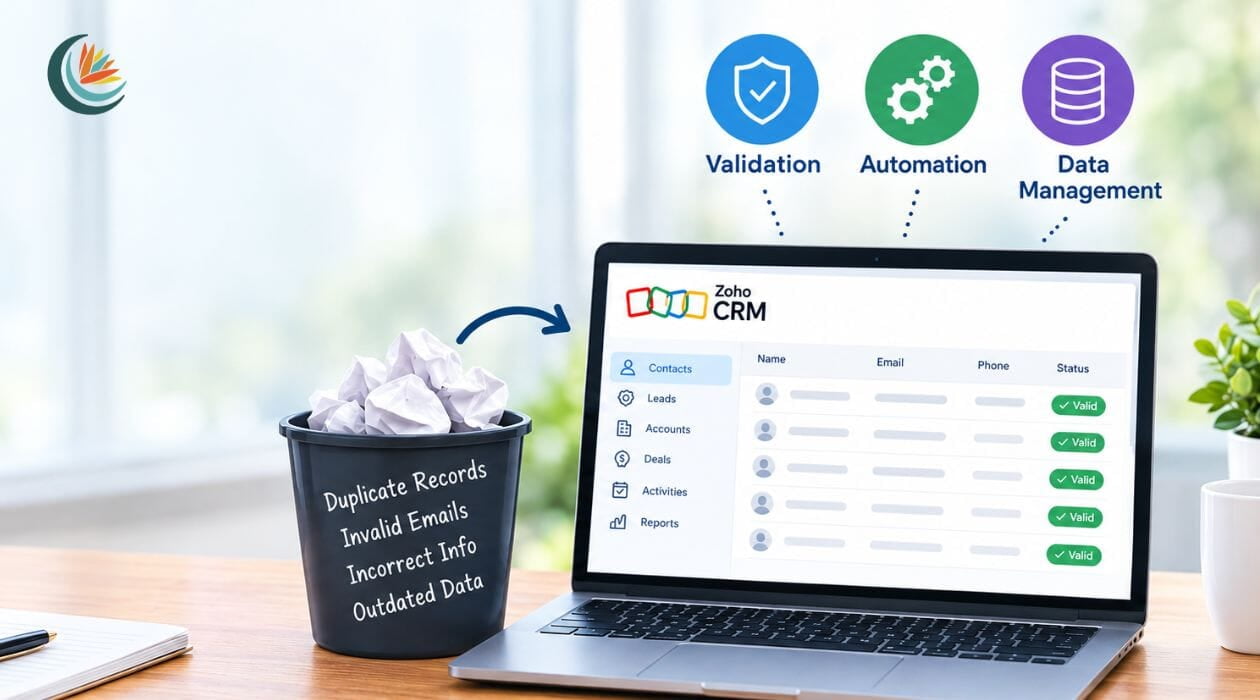
Poor CRM data typically stems not from a single erroneous entry, but from the processes governing how data is entered, flows through, and is maintained within the system. This article will walk you through leveraging Zoho CRM's native Validation, Automation, and Data Management tools to transform your database from a passive storage unit into an active guardian of information quality.
Bad Data Scenarios in your business...
What are the most common culprits of "Bad Data" in a CRM?

The common culprits of "bad data" include typos, missing fields, duplicate entries, inconsistent capitalization, and outdated contact info. Some of the hidden costs are lower email deliverability and sender reputation penalties; sales reps wasting time manually scrubbing contacts; and Inaccurate reporting that skews revenue forecasting.
Here are a few scenarios and the solutions you can potentially apply.
Problem 1: How can I prevent bad data from entering my CRM?
Every time someone submits a website form or enters a chat via SalesIQ a lead is created in your CRM. This is a basic and incredibly helpful automation. However, it stops being helpful when the data is not properly formatted or entered incorrectly. That causes confusion and frustration, especially among the sales team. When you add the human element into the Lead creation, it can often lead to bad quality data as well.
When sales reps are manually entering Leads into the CRM validation rules to prevent them from entering values that don't meet your organization's requirements. For example, you may want the to know what State your lead is in. The default State field is just a text field. You can set a validation rule that enforces that field to be the 2-letter State acronym.
Validation rules are a built-in feature in Zoho CRM that prevent incorrect data from being entered. It is a criteria-based and function-based validation (Zoho).
Using picklist fields and required fields helps prevent data entry errors from the start. Since text fields often lead to inconsistent formatting by different users, picklists ensure a choice is made from predefined options. Additionally, marking critical information as required prevents it from being overlooked, and you can further enforce this by setting layout rules that make fields mandatory at specific stages of the process.
For example, a manufacturer may require every new Account to have an Industry, State, Customer Type, and Account Owner. Instead of relying on sales reps to remember those fields, the CRM use required fields when the record is created or edited.
Common Rules Every Business Needs:
Format Validation: Ensuring email addresses and phone numbers match standard patterns.
Required Fields: Mandating essential fields (e.g., Lead Source, Company Name) before saving a record.
Picklist Constraints: Replacing open text fields with standardized dropdowns (e.g., Industry, State) to prevent variations like "CA," "California," and "California."
Problem 2: Duplicate records are being created
Problem 3: Data becomes inconsistent as it moves through the CRM

As customer data travels through a CRM system from Lead to Contact and Account or into the Deals, it suffers from inconsistencies that can undermine trust and accuracy.
Solution: Conversion Mapping, Workflows, Blueprints
From the most basic functionality of conversion mapping to Workflows and Blueprints, there are many ways to ensure data flows properly from point A to point B.
To ensure data from the Leads module correctly appears in the Contacts and Accounts modules after conversion, start by reviewing and updating your conversion mapping. When creating custom fields, if you want them to carry over to Contacts, select the appropriate option during creation. Otherwise, you need to verify the Lead Conversion Mapping settings.
In Zoho CRM, a Blueprint guides your team through specific steps in your process, automates actions, and enforces rules before moving a record to the next phase. For example, you may create a Blueprint for managing a deal. When the Stage is to Negotiations, then the "Negotiate" transition occurs and it requires the sales rep to enter a discount within limits and add notes. This is good for strict processes.
When you need a little more flexibility, a workflow rule may be a better option. Based on a trigger such as the creation of a Deal, you can automate actions like updating fields, sending notifications, creating tasks, or enforcing process compliance before a Deal moves forward.
Some other rules you can apply in your Zoho CRM account include:
Escalation Rules: Set up automatic alerts or reassignments if a record remains untouched or an issue remains unresolved past a defined time limit.
Layout & Field-Level Access Rules: Dynamically hide or show fields based on user roles or prior field selections, ensuring reps only see and enter data relevant to their specific role or deal stage.
Assignment Rules: Automatically assign incoming leads to specific team members using criteria such as territory, lead source, or round-robin distribution to ensure no leads remain unassigned or go missing. This prevents the same individual from handling all leads and promoting a balanced workload across your sales representatives.
Problem 4: Existing CRM data is already dirty
When you're already 5 years in to using the CRM and there have been multiple people "in charge" of how things are set up, it's not just about
preventing future issues. You are tackling the critical issue of existing dirty data in the CRM. Now there are a bunch of Contacts with their names in all caps, as well as phone numbers that are incorrectly formatted and a ton of duplicates across the system. How can your organization clean all of this up without hours of manual clean-up?
Solution: Data cleansing using DataPrep
We tackle the critical issue of dirty, inconsistent records by implementing a robust solution that includes comprehensive data cleansing, advanced preparation, precise deduplication, and full standardization. Instead of wasting time on manual fixes and data up, use other tools from Zoho.
Zoho DataPrep fixes bad CRM data in minutes, not hours. DataPrep can clean, enrich, transform, remove duplicates, formatting problems, perform bulk updates on new entries and historical data easier. Beyond fixing these existing problems, it also handles empty fields, replacements, and migration, while also offering data replication and backup capabilities.
Your Better CRM Data Checklist
- Identify your top 3 lead sources and test their forms or entry points into your CRM.
- List the most important fields in your CRM. Evaluate those that are text fields. Can they be changed into picklists/dropdowns?
- Decide on at least 1 field in every record type (Lead, Contact, Account) that makes it unique. If you have not already set that field to "Unique" then do it today.
- Eliminate manual CSV imports by creating automated connections directly in Zoho CRM or through Zoho DataPrep.